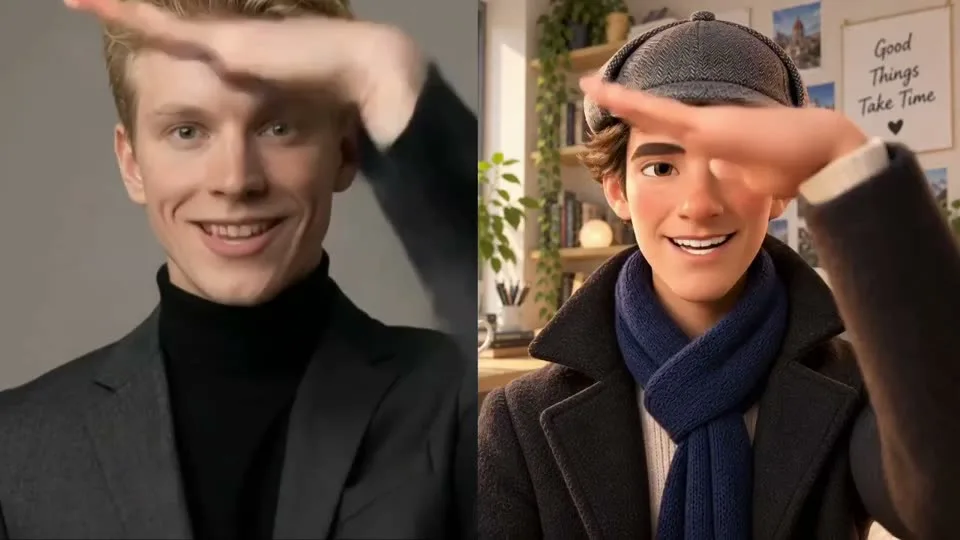
AI Motion Control for Character Animation
Upload a character image, then add your own motion video or choose a preset. AI Motion Control uses the reference movement to create a new character video.
See AI Motion Control Video Examples
Compare each motion reference with the animated character result across dance, facial expression, creator gestures, and stylized characters.
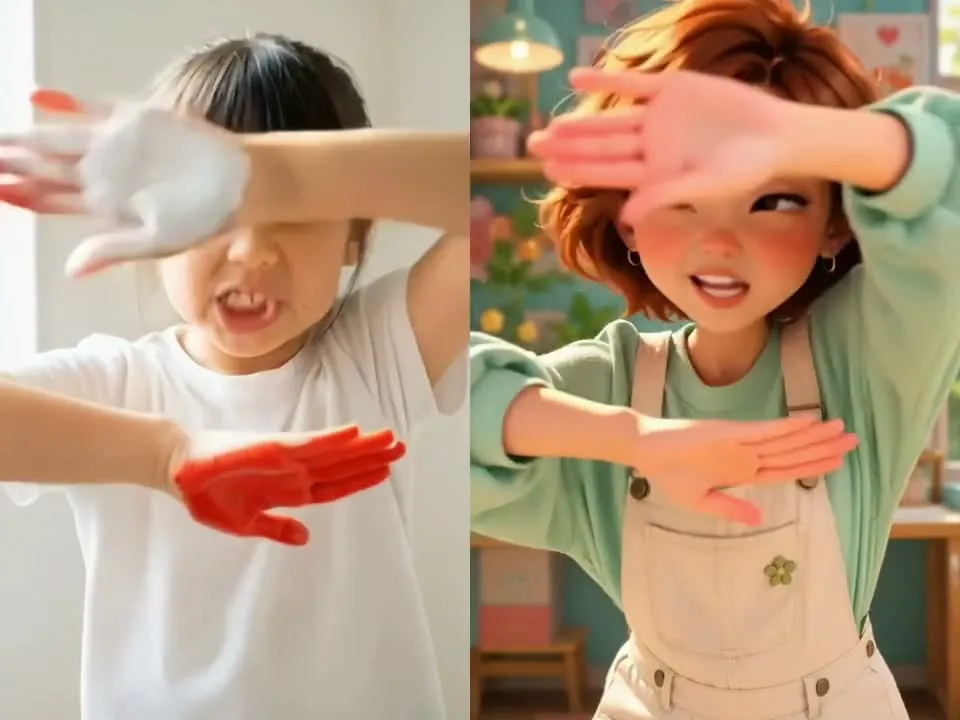
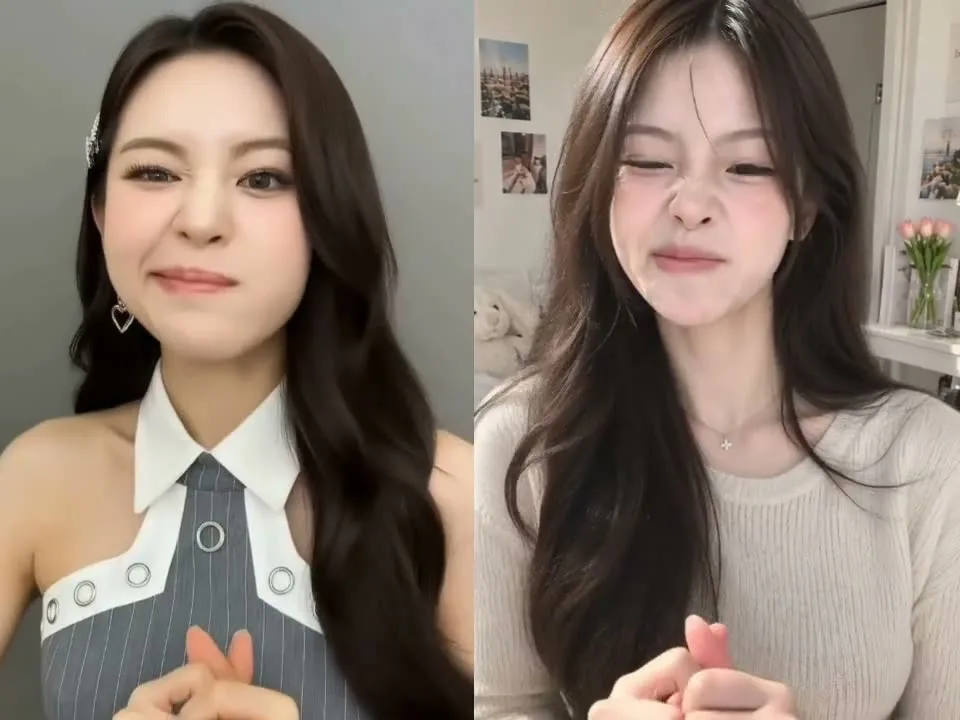
How AI Motion Control Uses a Reference Video
Start with a character image and a video that shows the movement you want. The reference clip guides the action in the generated character video.
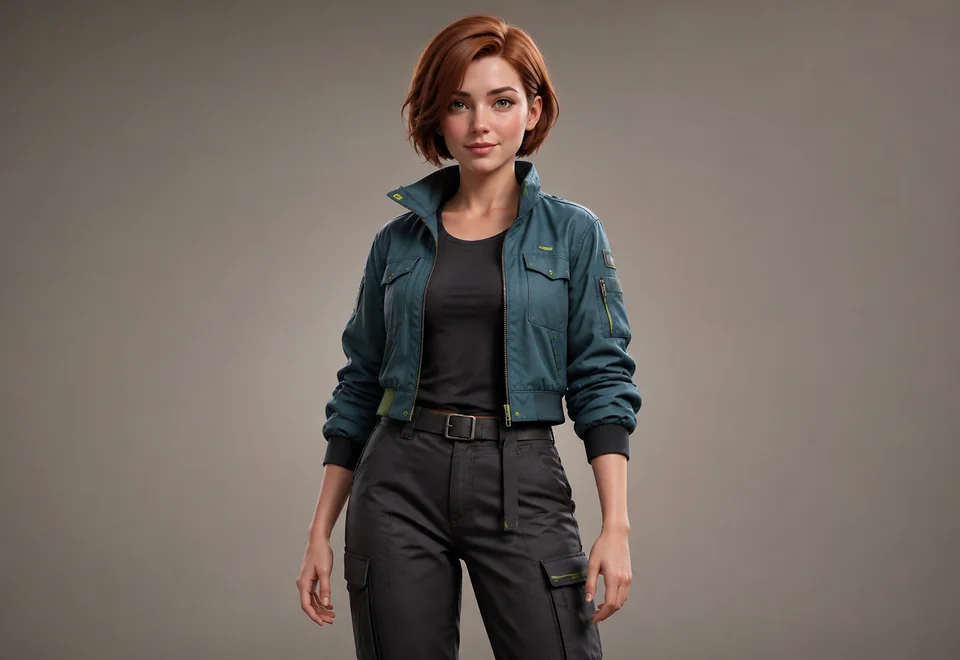
Choose a Character Image
Use a portrait, full-body illustration, 3D character, or photo with one clearly visible subject.
Add the Movement You Want
Upload a motion video or select a preset that already shows the action, timing, and body position you want to use.
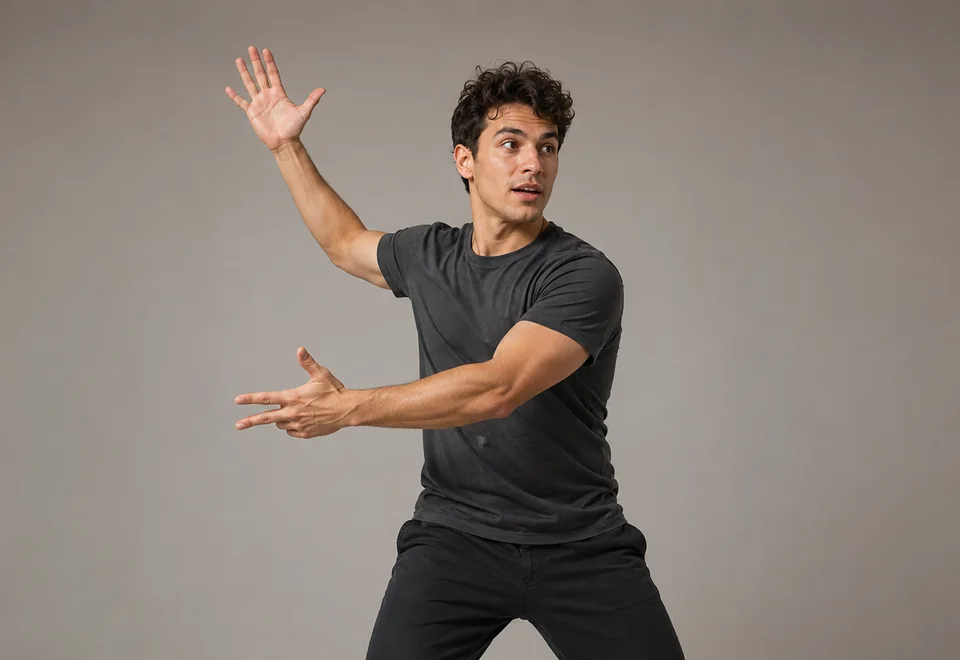
Review the Character Video
AI Motion Control combines the character image with the reference movement so you can review the result and try another pairing when needed.
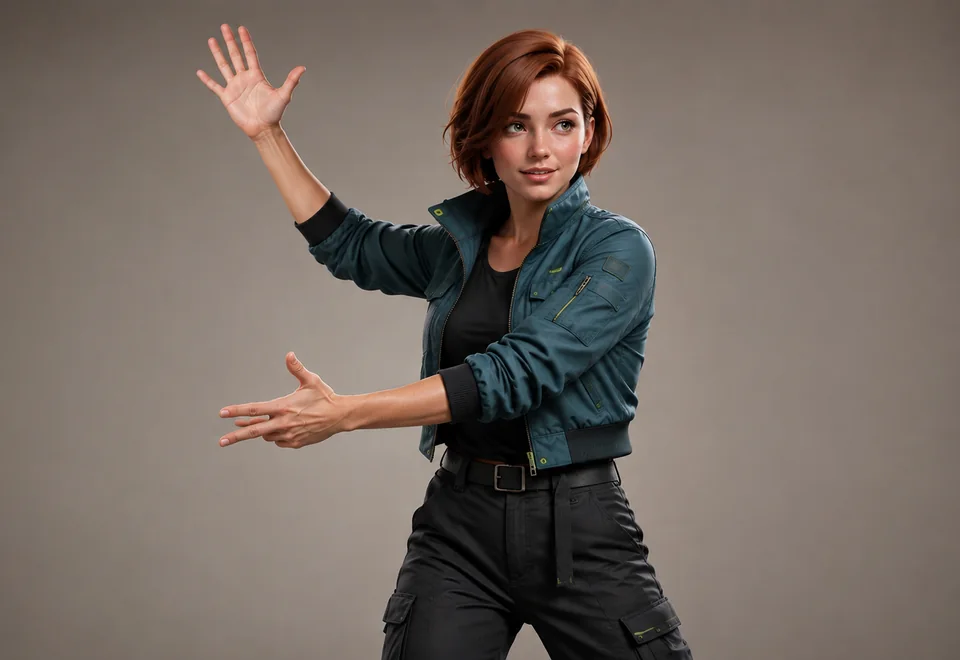
Help Characters Stay Recognizable with AI Motion Control
The character image and reference video work as a pair. Clear subjects, similar framing, and readable movement give the model better information to work with.
Match the Framing
Pair a full-body movement clip with a full-body character image. For closer gestures or head movement, start with a portrait framed at a similar distance.
Keep the Character Easy to Read
Choose an image with a clear face, visible body shape, and enough separation between the character and background.
Use a Clear Motion Reference
A clip with one visible performer and an unobstructed action is easier to follow than footage with frequent cuts, heavy blur, or several people.
Why Use AI Motion Control for Character Videos
Use movement that is already visible in a reference clip instead of relying on a text description alone.
Direct Movement with a Reference Video
Choose a clip that already shows the action, rhythm, and body position you want. The video gives AI Motion Control a visible movement guide for the character.
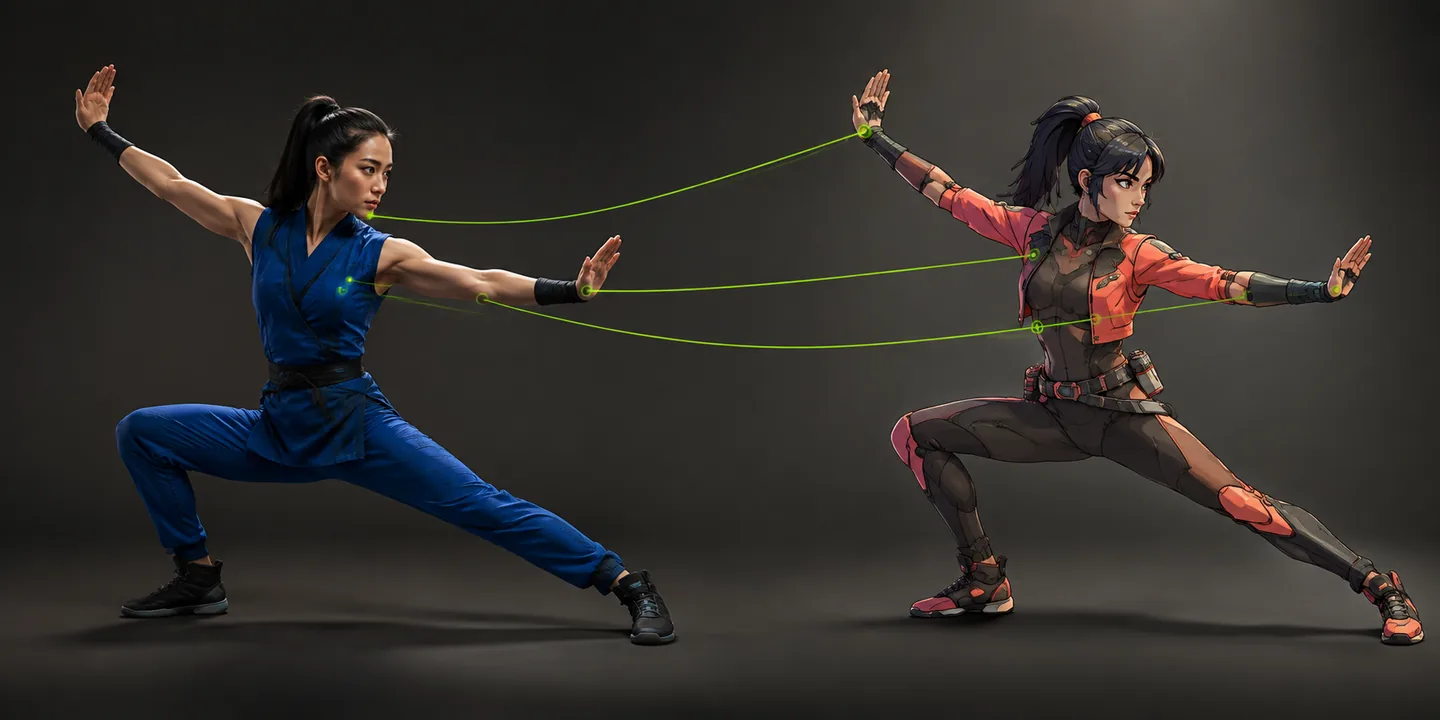
Use Your Own Clip or a Motion Preset
Upload a movement you have already recorded, or begin with a preset when you want to explore the workflow without preparing a reference video first.
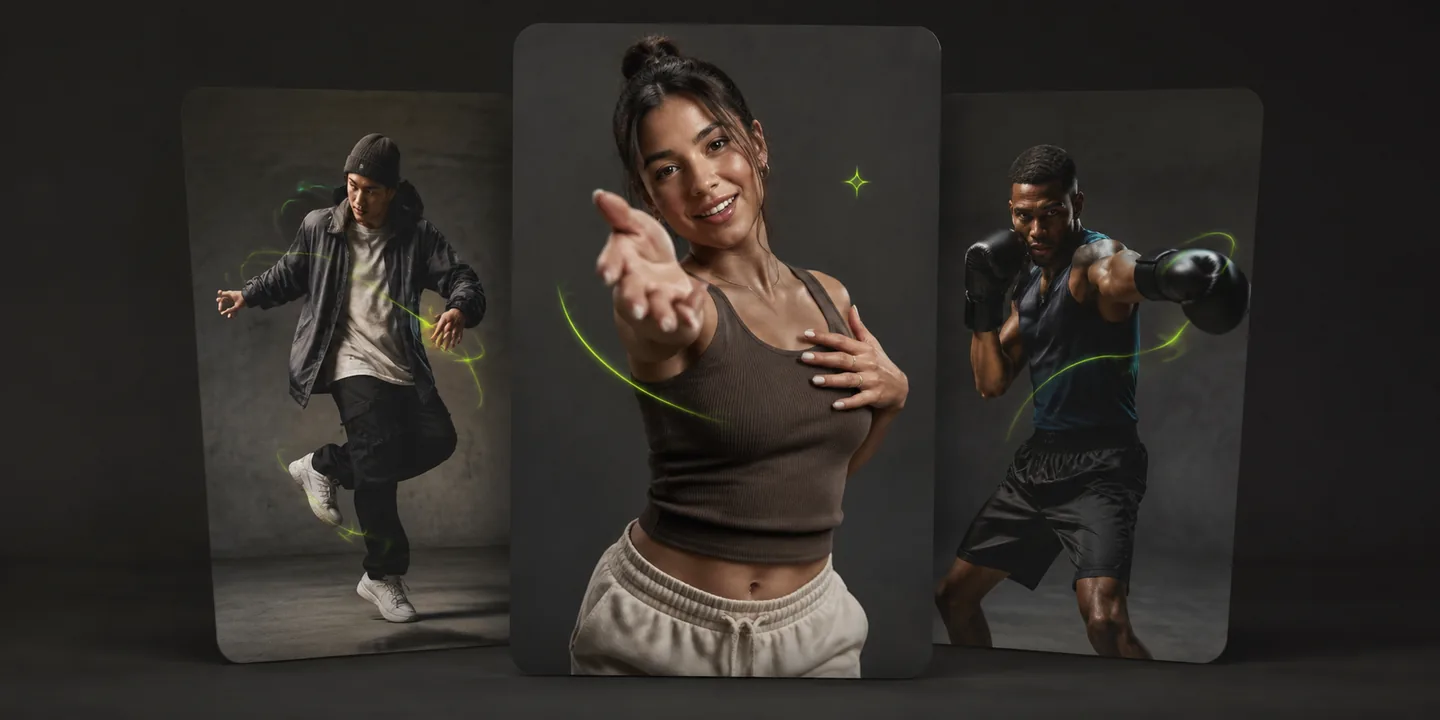
Animate Different Character Styles
Try motion transfer with illustrations, anime characters, 3D artwork, stylized portraits, or photos. Results depend on the source image and movement pairing.
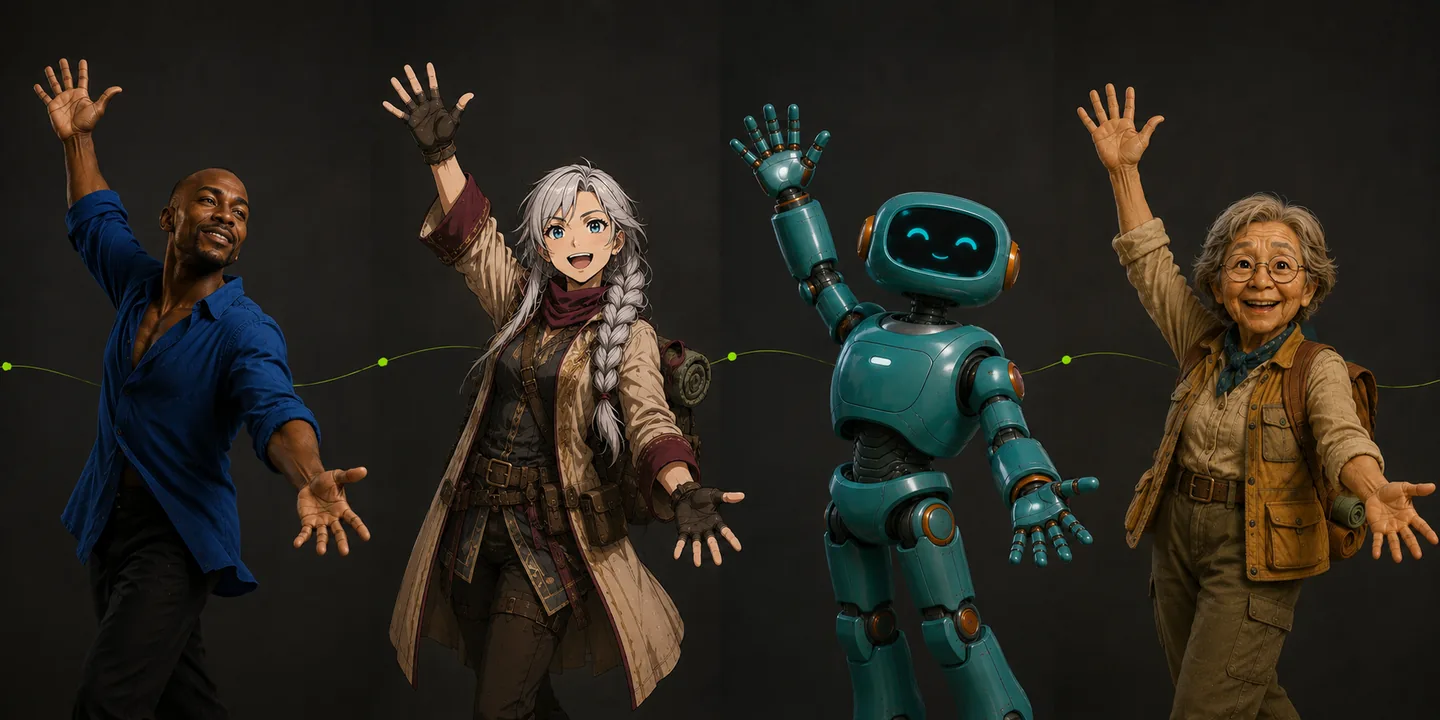
Choose How the Character Faces the Scene
Follow the orientation of the reference video, or keep the direction of the original image when that option is available for the selected clip length.
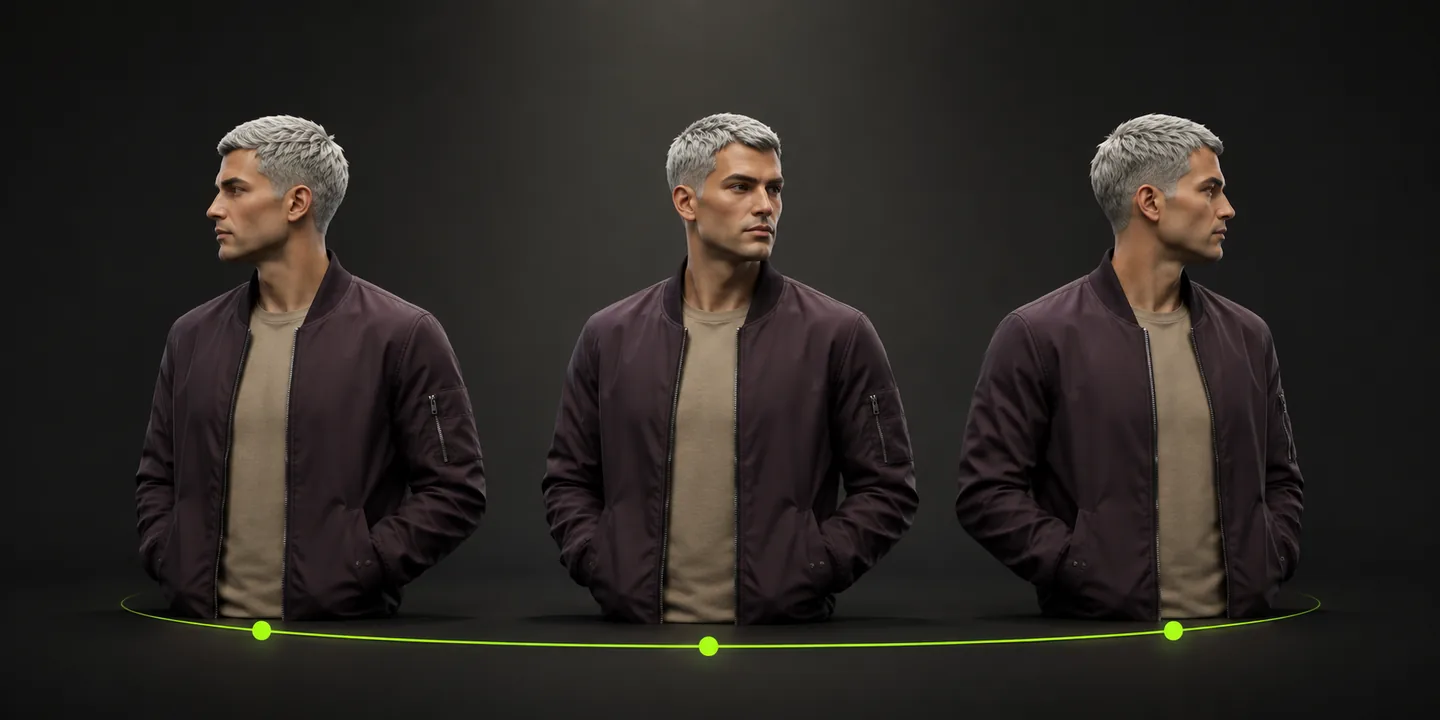
Compare AI Motion Control with Other Animation Methods
Each method starts from a different kind of direction. Choose based on whether you already have a movement reference, a written idea, or an animation workflow.
| Evaluation Factor | AI Motion Control | Standard AI Video | Manual Animation |
|---|---|---|---|
| Movement Direction | Shown in a reference video | Described in a prompt or inferred from an image | Set by an animator |
| Starting Material | Character image and motion clip | Image or text prompt | Prepared character asset and animation setup |
| Useful When | You want to reuse a visible performance | You want to explore motion from an idea | You need shot-by-shot animation control |
| Your Main Task | Choose a character and reference movement that fit | Write directions and review variations | Rig, animate, and refine the character |
Practical Ways to Use AI Motion Control
Use a movement clip you already have to explore how an illustrated, photographed, or digitally created character can perform the same action.
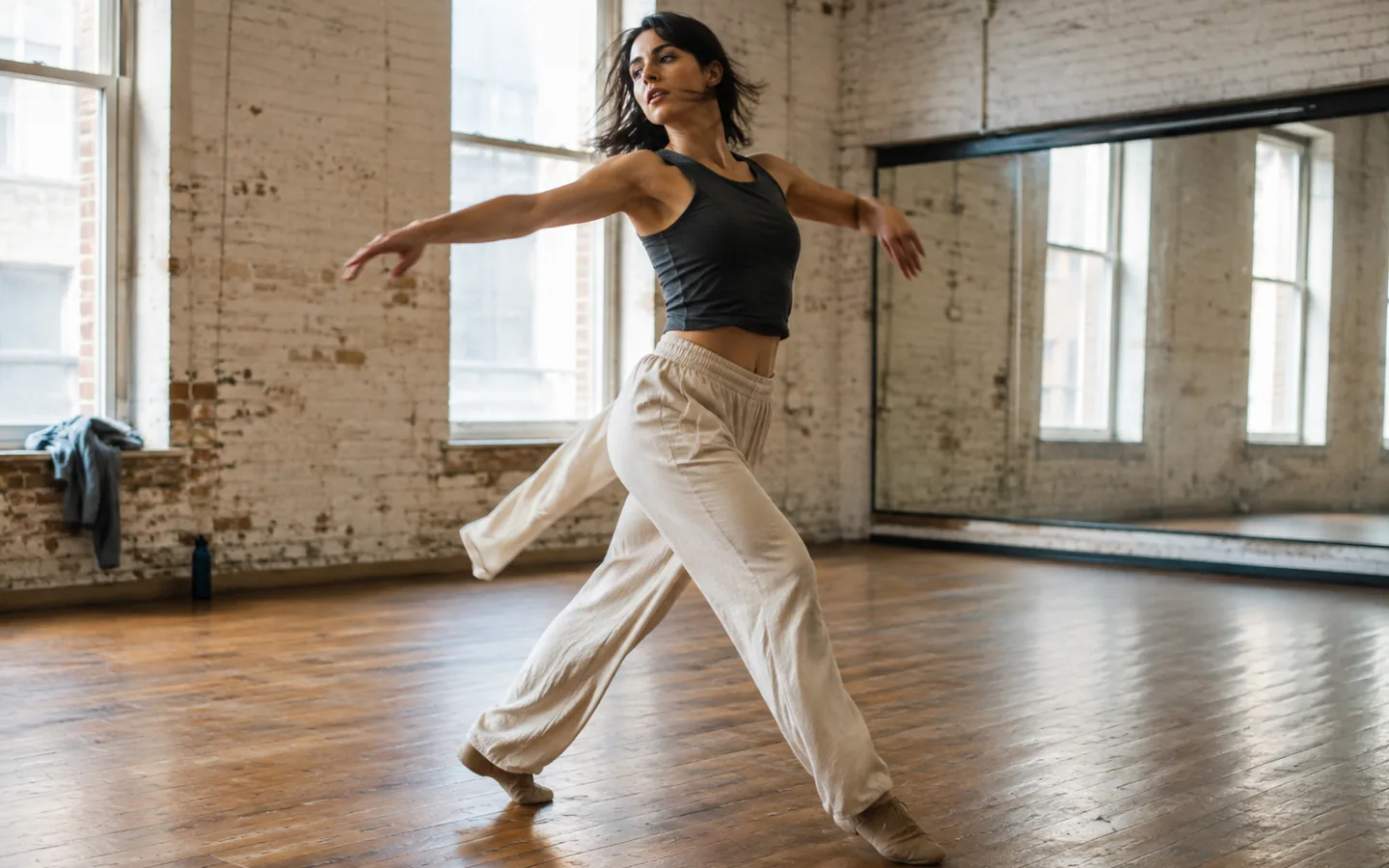
Character Dance and Performance Videos
Use a dance, gesture, or performance clip as the motion reference for an illustrated or virtual character. This works well when the movement itself is the main idea of the video.
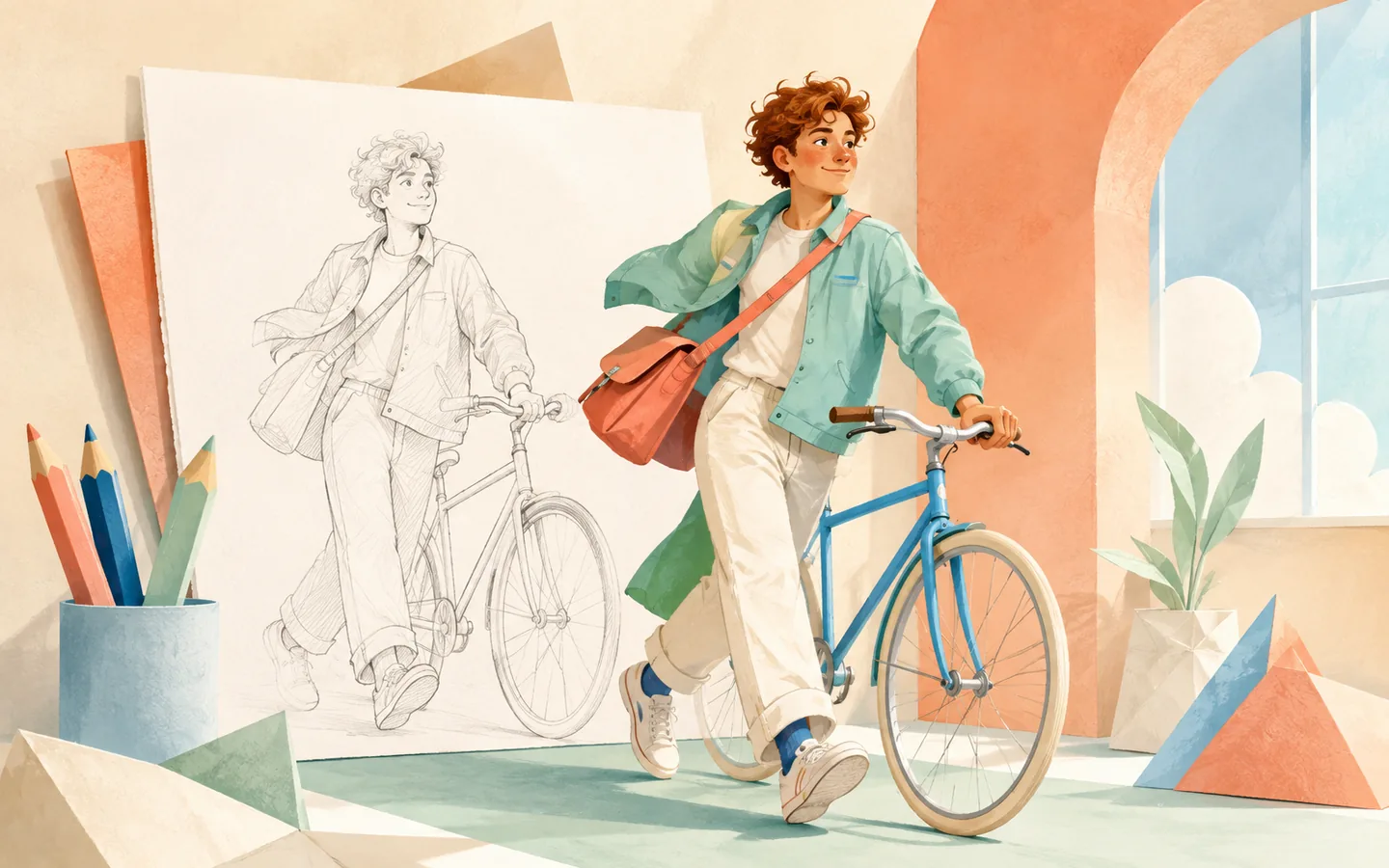
Animated Illustrations and Character Posts
Give static character artwork a visible action for introductions, short posts, and standalone character moments without drawing each frame by hand.
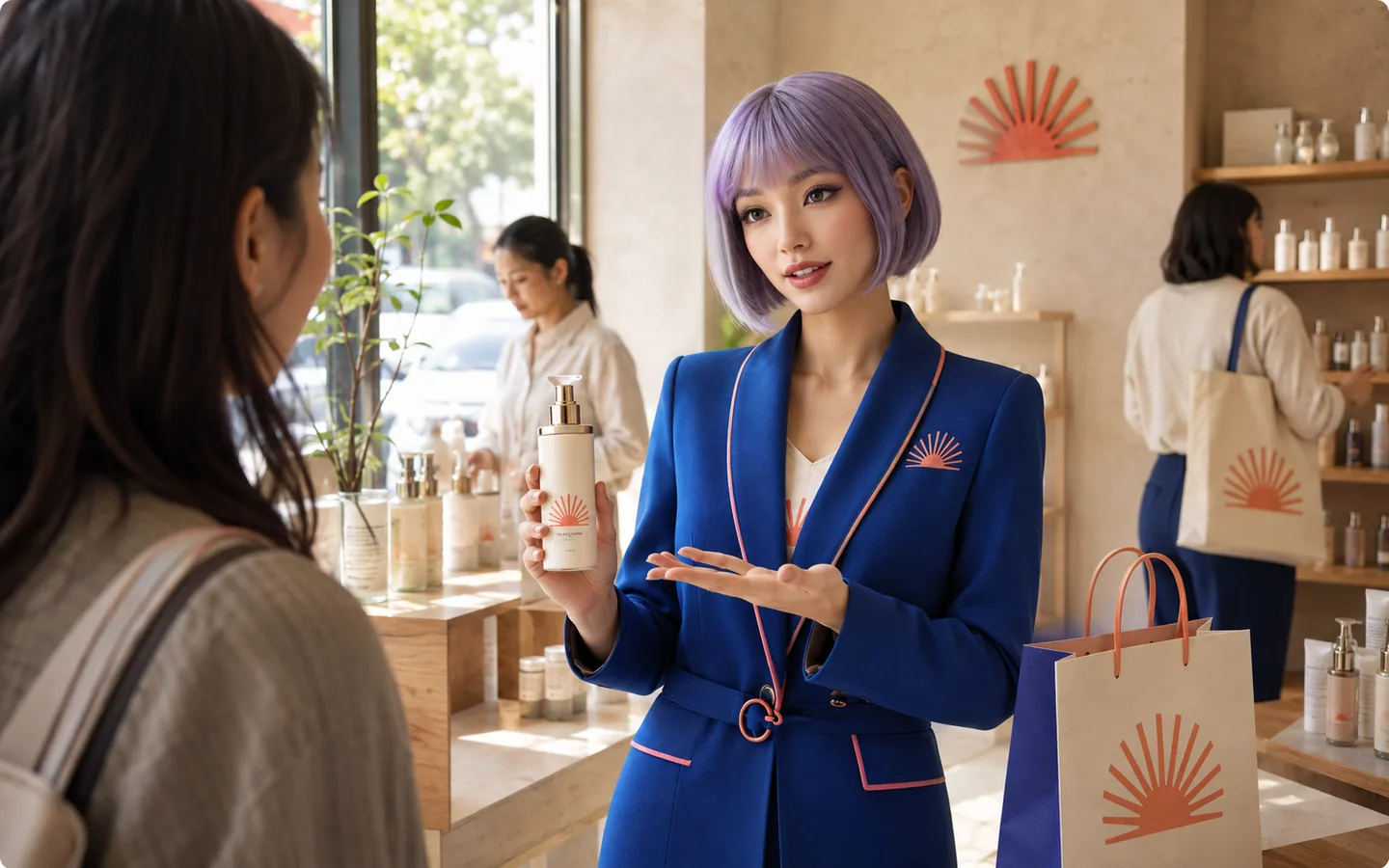
Virtual Presenters and Brand Characters
Apply recorded head turns, hand gestures, and body movement to a mascot or virtual presenter when the character needs a short visual performance.
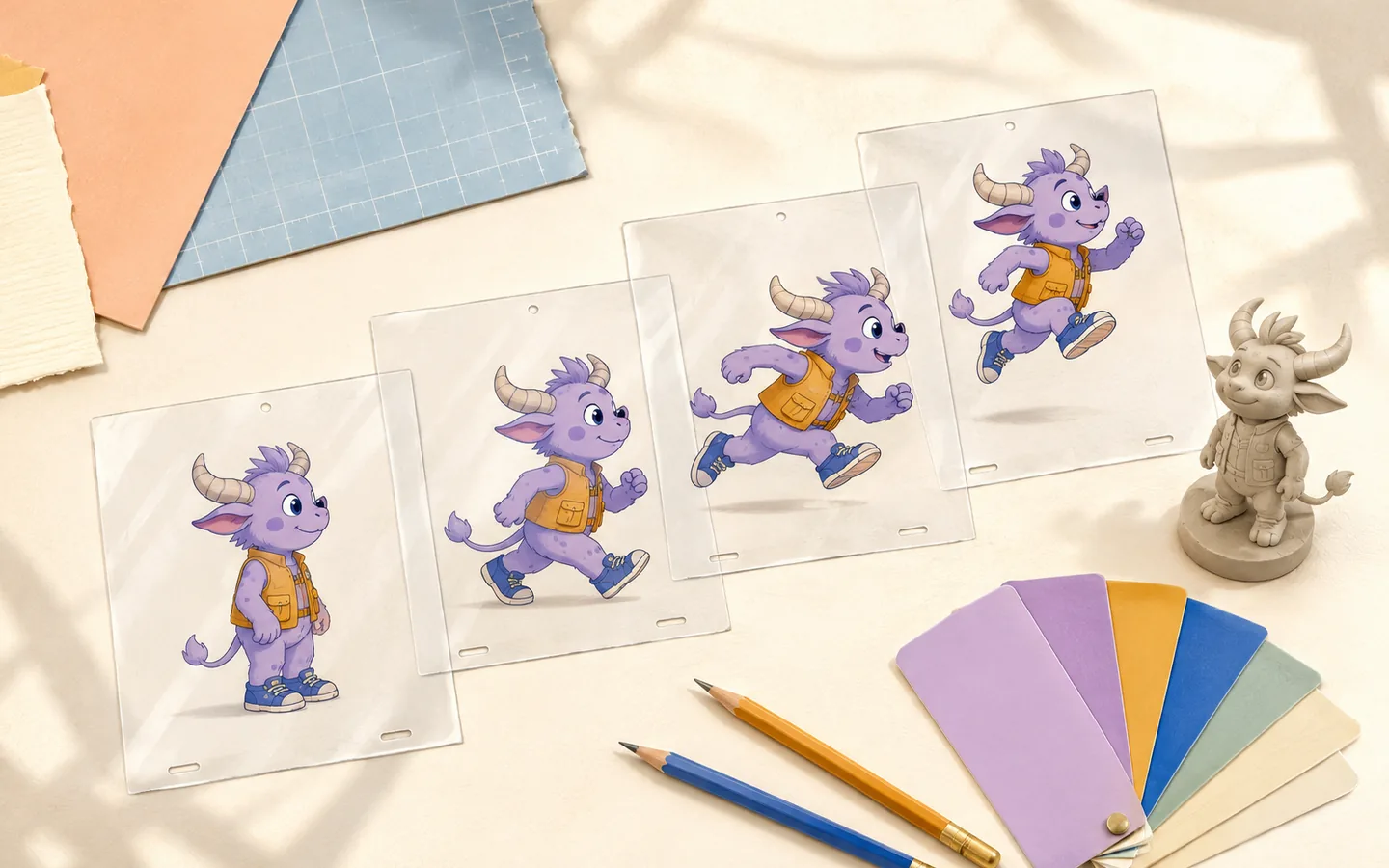
Movement Tests for Character Concepts
Try a walk, run, pose, or action reference with a character concept to see how the design reads in motion before planning a larger animation project.
How to Create Videos with AI Motion Control in 3 Steps
Prepare a character image and a short movement clip, then choose the settings that fit the source material.
Upload a Character Image
Choose a JPG, PNG, or WebP image with one clearly visible character.
Add a Motion Reference
Upload an MP4 or MOV clip between 3 and 30 seconds, or select a movement preset from the generator.
Choose Settings and Generate
Select character orientation, output quality, and whether to keep the reference audio, then generate the video.
Frequently Asked Questions About AI Motion Control
Answers about source files, motion references, output options, usage rights, and account privacy.
AI Motion Control creates a character video from two main inputs: a character image and a reference video. The reference clip shows the movement, while the image provides the character that appears in the generated result.
Create a Character Video with AI Motion Control
Add a character image and a reference movement, choose the available output settings, and generate the video in your browser.
Use your own motion video or start with a preset